 Download
Articles
-


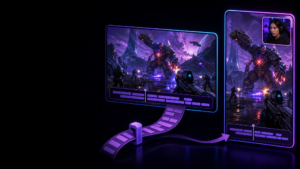
Twitch Automatic Portrait Clips vs Deliberate Dual-Format Capture
Twitch can now create portrait clips automatically, but a suggested crop is not always the same as a purpose-built vertical composition. Compare the fastest route with a controlled dual-format capture workflow.
-
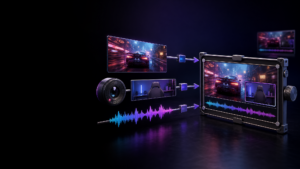
Why Separate Replay Sources Need Timing Information to Stay Editable
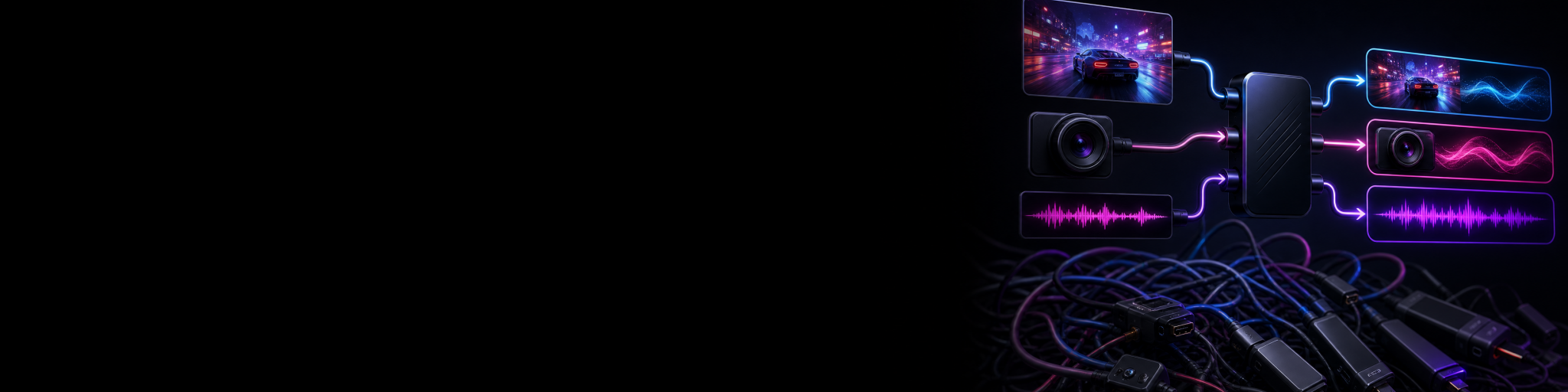
Separate gameplay, webcam and audio files are only useful in an edit if they still describe the same moment. Here is why shared timing and a capture manifest matter for replay footage.
-
How to Reuse Captions Between Horizontal and Vertical Gaming Clips
Reuse caption work between matching landscape and portrait gaming clips without blindly treating both formats as identical. Copy the shared edit, then review placement, line breaks and gameplay visibility for each version.
-
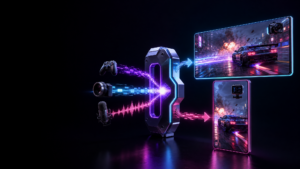
OBS Replay Buffer Alternatives With Separate Tracks and Dual Layouts
Compare replay-capture workflows for creators who need more than one finished clip: separate gameplay, webcam and microphone sources, plus deliberate 16:9 and 9:16 layouts from the same moment.
-
Choose the Right Replay Source Structure for Reframing and Audio Mixing
A replay buffer is only as editable as the files it saves. Compare composite clips, embedded audio tracks and aligned source packages before handing highlights to an editor.
-
The Least Complicated Way to Preserve Clean Gameplay, Webcam and Audio While Streaming
A practical comparison of recording setups for streamers who want clean gameplay, webcam and audio they can still use after the live show—without turning their PC into a multi-instance routing project.
-
Manual Replay Capture vs AI Gaming Clippers: Which Workflow Fits You?
AI gaming clippers can help discover moments, while manual replay capture gives you control over exactly what gets saved. Compare the workflows, trade-offs and best fit for your content.
-
Generate Gameplay Captions Locally From Microphone Audio
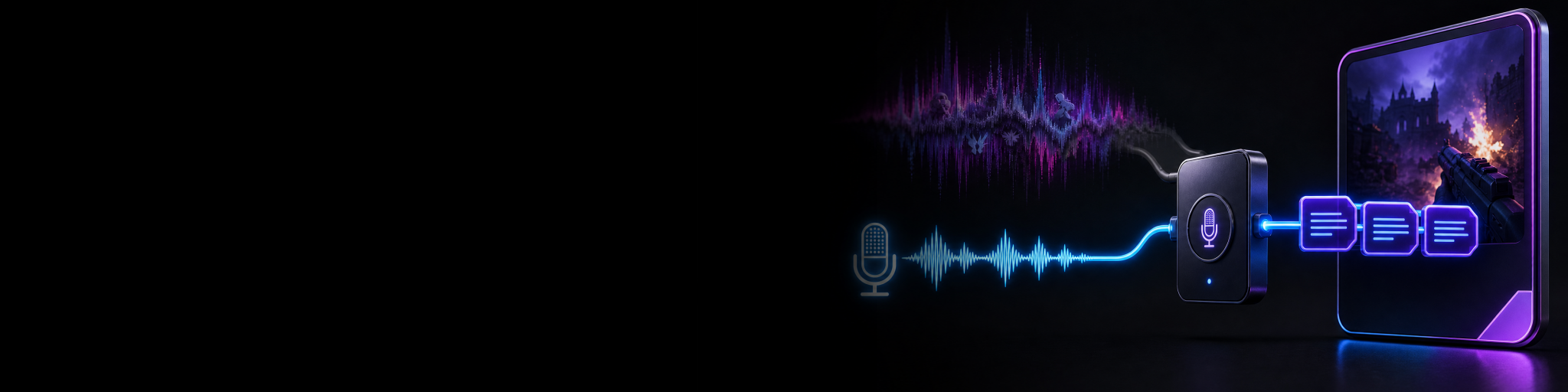
A practical comparison of local and cloud caption workflows for gaming clips, plus why transcribing a clean microphone track can produce a more usable first draft than relying on noisy mixed gameplay audio.
-
How to Save Clean Gameplay for Clips While Streaming With Overlays and a Webcam
Keep your live stream layout intact while saving clean gameplay for clips. Compare OBS scene-based workarounds with a source-preserving replay workflow that leaves gameplay and camera editable after the moment.
-
Twitch Highlights Freezing or Out of Sync? Build a Reliable Local Clip Workflow
Twitch Highlights are convenient, but a frozen frame, missing section or drifting audio can make a chosen moment unusable. Learn what to check and when a local replay capture workflow is the more reliable option.