 Download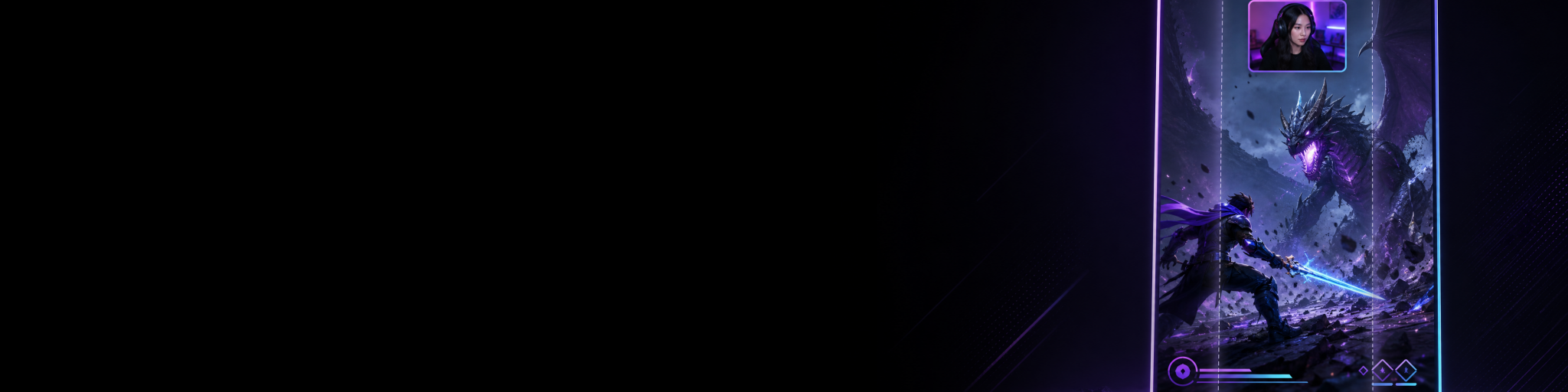
Twitch’s newer clip tools make it much easier to leave a stream with something shareable: clips can receive a portrait version, a suggested crop that tries to keep gameplay and camera in view, captions, and direct sharing options for platforms including TikTok, YouTube and Instagram. That is a real improvement for streamers who want fast social posts without building a separate editing workflow.
But there is an important distinction: an automatically cropped portrait clip is an adaptation of a finished stream layout. Deliberate dual-format capture starts with the assumption that 16:9 and 9:16 are different compositions with different jobs. One can be a quick way to publish; the other can be the better way to protect the gameplay, facecam and context that make a highlight work.
The right choice depends less on whether you “need vertical video” and more on how often you publish, how controlled you want the result to be, and whether you are happy fixing framing after the moment or want to solve it before capture.
The short answer
Choose Twitch’s automatic portrait clips when your priority is getting more stream moments clipped, captioned and posted with almost no setup. They are particularly useful for community clips, casual repurposing and testing which moments resonate.
Choose deliberate dual-format capture when vertical publishing is part of your regular creator workflow and the portrait version needs its own intentional layout. This matters when a centre crop could hide HUD information, cut off the action, make a facecam too small, or force you to repair the same framing problem clip after clip.
You do not necessarily need to choose one forever. Automatic clips can be a useful discovery and sharing layer, while a separate dual-format capture workflow gives you controlled versions of the moments you already know are worth publishing.
What Twitch automatic portrait clips do well
Twitch’s clip editor creates landscape and portrait versions side by side. For the portrait version, it applies a suggested crop based on where it detects gameplay and camera; you can accept, adjust or dismiss that suggestion. Twitch also offers Full and Stacked portrait layouts, remembers a channel’s latest layout preference for future clips, and lets eligible users share clips directly to several social platforms.
That workflow is strongest when the stream itself is already framed cleanly enough that an automatic crop or a reusable layout preference will usually work. If your gameplay is centrally focused, your camera is consistently placed and you mainly need short, timely posts, it removes a lot of friction.
- You can turn a live-stream moment into a shareable clip without maintaining another recorder.
- Suggested crops reduce the amount of manual reframing needed for straightforward layouts.
- Captions are available in the clip workflow, helping clips make sense when watched without sound.
- The clips are already connected to your Twitch channel and can be shared from Twitch’s own tools.
Twitch is also expanding automatic clipping. As of September 28, 2026, its Auto Clips help page describes the feature as an invite-only English-language alpha for eligible channels: it can create captioned clips from selected moments, including a voice command for the preceding 60 seconds, and clips are generally available within 30 minutes after a stream ends. ([help.twitch.tv](https://help.twitch.tv/s/article/auto-clips?utm_source=openai))
Where automatic portrait clips can become limiting
A crop can only work with the visual decisions already baked into the stream. Twitch’s suggestion is useful, but if it cannot confidently identify the relevant camera or gameplay area, it starts with a centred crop. Even when the suggestion is sensible, you are still reviewing a layout after the highlight exists rather than capturing a separate vertical composition from the outset.
This is most noticeable in busy games. A vertical frame may need the objective, player position, kill feed and facecam to remain readable at once. A landscape stream scene designed for desktop viewers may place those elements far apart. Cropping inward can sacrifice context; stacking the camera and game can help, but it is still a template applied after your original scene was designed.
There are also workflow limits to consider. Twitch clips are capped at 60 seconds in the standard Clip Creator, and Auto Clips are geared towards selecting and preparing moments after a stream rather than giving you a separate local capture asset at the moment it happens. ([help.twitch.tv](https://help.twitch.tv/s/article/auto-clips?utm_source=openai))
Deliberate dual-format capture means composing twice, not cropping once
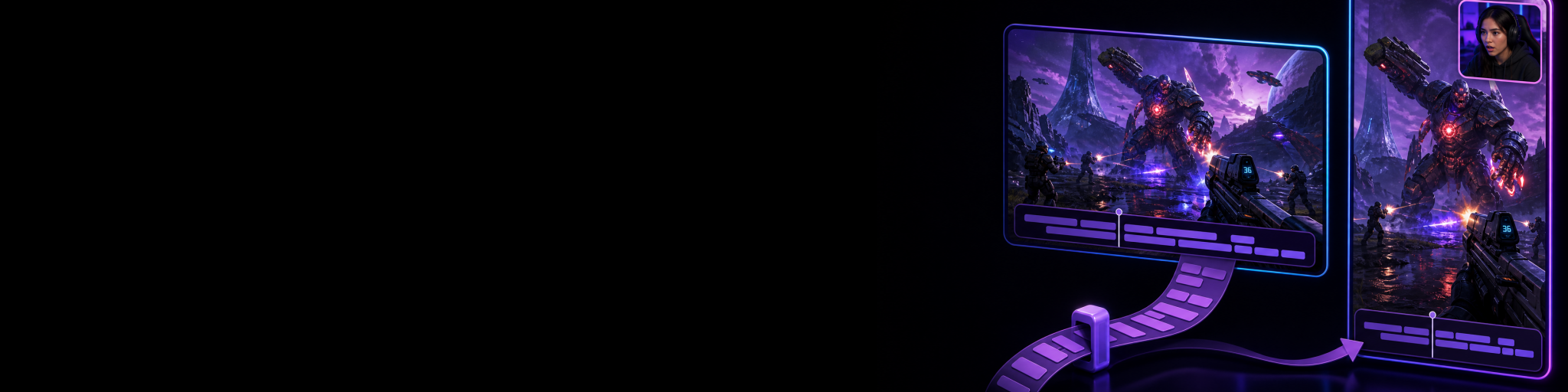
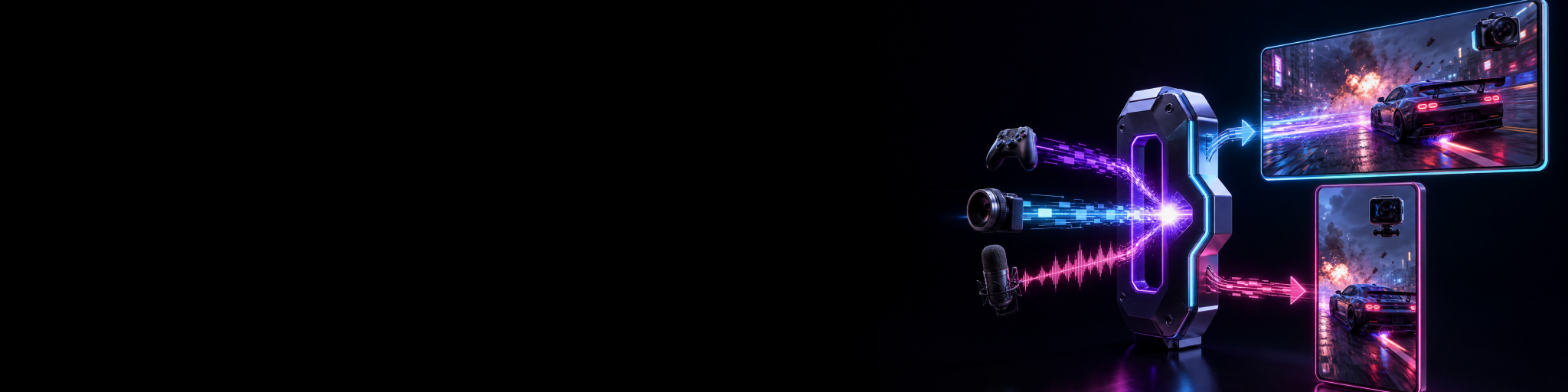
A deliberate dual-format workflow uses the same live source session to create a horizontal and vertical version of the same moment, but gives each canvas its own layout. The landscape version can keep gameplay wide for YouTube or a conventional stream view. The portrait version can keep the action large, move the facecam above or below it, and reserve space for overlays without squeezing everything into a narrow centre crop.
That is the core difference with Cutscene Replay. It can save horizontal and vertical outputs from the same replay moment while letting you arrange the same sources differently in each canvas. The horizontal canvas has its own layer, transform, crop and background state; the vertical canvas has its own composition rather than being a crop of the landscape output.
For example, imagine a competitive shooter highlight. Your 16:9 layout can show the full HUD, teammate information and a modest facecam in the corner. Your 9:16 layout can make the gameplay area taller, place the facecam above the action and keep the important HUD region visible. You are not asking one finished frame to serve two incompatible viewing contexts.
The practical gain is consistency. You make the platform decision once in your capture layout instead of repeatedly deciding what to cut away after every good moment. Matching horizontal and vertical captures are also stored as partners in Cutscene’s library, so you can move between the two versions of the same highlight without relying on filenames.
Twitch Dual Format streaming changes the decision
There is one more option worth separating from automatic portrait clips: Twitch Dual Format streaming. Twitch rolled it out to all streamers on June 17, 2026. It sends horizontal and vertical versions of a broadcast simultaneously, and Twitch says creators can customise both layouts so clips and VODs are available in both formats.
If your main goal is improving the live Twitch experience on desktop and mobile, Twitch Dual Format is the obvious place to start. It gives viewers a purpose-built vertical live view and means your Twitch clips begin with a better vertical source than a conventional horizontal-only stream.
A capture-side workflow still has a different role. It is useful when you want your own paired replay files while playing, want to build content around selected moments rather than your complete broadcast, or want an independent local capture workflow for publishing beyond Twitch. In other words: Twitch Dual Format is about delivering two live experiences to Twitch; dual-format replay capture is about preserving two purpose-built clip outputs for your creator workflow.
A practical decision guide
Use automatic portrait clips when speed is the whole point
- You stream occasionally or only repurpose a few moments each month.
- Your stream layout already survives a vertical crop reasonably well.
- You want your community and Twitch tools to help surface shareable moments.
- You prefer a fast review-and-post workflow over setting up separate capture layouts.
- You are comfortable making small crop or layout adjustments after the stream.
Use deliberate dual-format capture when composition affects performance
- You publish Shorts, TikToks or Reels consistently, not just occasionally.
- Important gameplay information sits near the edges of your landscape scene.
- Your facecam, overlays and gameplay need different emphasis in 16:9 and 9:16.
- You want the same highlight ready in two formats immediately after saving it.
- You want paired horizontal and vertical captures organised together for a repeatable publishing workflow.
Use both when Twitch is your live home and short-form is a serious channel
This is often the strongest setup. Use Twitch’s automatic tools to help surface, caption and share stream moments quickly. Use intentional dual-format capture for the moments you personally save and want to turn into polished cross-platform posts. The first workflow helps you avoid leaving a stream empty-handed; the second avoids rebuilding the visual structure of your best clips later.
How to set up a controlled two-format workflow
- Design the horizontal canvas for the audience that will watch wide: preserve the full game view and use a facecam size that suits desktop viewing.
- Design the vertical canvas independently: make the decisive game area readable first, then place the facecam and overlays around it rather than over it.
- Save a few test replays from games with busy HUDs, fast movement and dialogue. Check each format on the device it is meant for.
- Keep the two layouts stable for a series or game category. Consistency means less review work and a recognisable visual style.
- Treat the matching versions as two exports of one editorial choice: the same moment, but a composition built for each audience.
If you already use Twitch Dual Format streaming, the same principle applies. Build the vertical layout deliberately rather than assuming the horizontal scene will translate. Twitch’s own approach is now moving in that direction: its dual-format tools provide two custom layouts, while its clip editor still offers an automatic crop as a useful fallback for clips created from conventional broadcasts.
Build horizontal and vertical clips from the same moment
Try Cutscene Replay if you want purpose-built landscape and portrait replay outputs instead of repeatedly cropping one stream layout into another.
The decision is about control, not whether automation is “good”
Automatic portrait clips are valuable because they lower the chance that a strong stream moment disappears into a VOD. For many streamers, that convenience is enough, and it is far better than never clipping at all.
Deliberate dual-format capture earns its extra setup when vertical content is not an afterthought. If your TikTok, Shorts and Reels need to feel designed rather than rescued from a widescreen broadcast, separate horizontal and vertical compositions give you a more reliable starting point. Cutscene Replay is built for that specific workflow: capture one moment, save both formats, and keep each format composed for the audience that will actually watch it.
For related workflows, see how Twitch and YouTube automatic clip workflows compare, how to make vertical gaming clips without cutting off the action, and how to reuse caption work between paired horizontal and vertical clips.