 Download
The right gaming capture workflow depends on what you need after the highlight happens. If you want to save a great moment, trim it lightly and post it the same day, an instant compiled clip is usually the better default. If you may need to move a facecam, repair the audio balance, change the framing or take the moment into a professional editor, you need an editable source package.
For many creators, the most useful answer is not choosing one forever. It is using a recorder that can produce a ready-to-share clip while optionally preserving the underlying source files for the moments worth taking further. That gives you speed for everyday highlights without forcing you to throw away flexibility on the clips that perform well.
The short answer: choose based on the likely next step
- Choose instant clips when your usual workflow is save, trim, caption if needed, export and publish.
- Choose editable source files when you expect to reframe visuals, adjust individual audio sources, build a longer edit or hand the footage to an editor.
- Choose both when you publish frequently but occasionally want a more polished version of a strong moment. This is the most flexible option, provided you have enough storage and your recorder makes the extra files manageable.
This is a workflow decision rather than a quality contest. A compiled clip is not “bad” footage; it is simply footage whose visual and audio choices have already been combined into one finished file. Editable sources preserve more of the capture structure so those choices can be revisited later.
What an instant clip gives you
An instant clip is a compiled replay: one video file containing the selected gameplay moment with the chosen layout and audio mix already baked in. It is built for low-friction publishing. Hit your replay hotkey after a clutch win, funny fail or unexpected reaction, then open a short file rather than digging through hours of session recording.
For a creator posting regular highlights, that simplicity matters. There is less to organise, fewer files to copy and less opportunity to lose sync between gameplay, voice and camera. The clip is immediately understandable in a clip library and can usually go straight into a lightweight editor for trimming, pacing changes, captions, fades or an overlay.
Instant clips are a strong fit when you:
- Post short gameplay moments frequently and value speed over extensive post-production.
- Usually keep the same gameplay layout, facecam position and audio balance.
- Want to save only selected highlights instead of recording an entire session.
- Need a simple file you can share, upload or archive without managing a project folder.
- Prefer to decide whether a moment is worth extra editing only after seeing how it performs.
There are trade-offs. Once a video is compiled, you cannot cleanly separate elements that were mixed together. If your facecam covers an important HUD element, your microphone is too loud, or you decide the clip needs a different composition, you are working with the rendered result rather than the original building blocks.
What an editable source package gives you
An editable source package keeps the independent capture material alongside the replay. Depending on your setup, that can mean the gameplay/screen feed, webcam and audio sources retained as aligned files, plus the timing information needed to reconstruct the moment as an editable project.
The advantage is not that every clip must become a complicated edit. It is that a valuable moment remains recoverable. You can revisit visual placement, choose a cleaner audio source, remix the commentary, remove an unwanted element or build the highlight into a larger video without manually trying to synchronise a pile of anonymous recordings.
Editable sources are a strong fit when you:
- Record gameplay, facecam and audio in ways you may want to change after capture.
- Make vertical clips where reframing a saved moment can matter as much as trimming it.
- Need separate audio control for commentary, game sound or voice chat. See how to capture game audio, voice chat and microphone on separate tracks for the practical editing reasons.
- Create longer YouTube edits, compilations, sponsor segments or collaborative projects from selected highlights.
- Use DaVinci Resolve, Final Cut Pro or another professional non-linear editor for your best work.
- Want the option to send an editor a properly organised package instead of a flattened clip and a vague explanation of what needs fixing.
The cost is complexity. Source packages take more storage than a single compiled clip, create more files per saved replay and can add time to your media-management routine. They are most useful when you will genuinely use the extra control—not simply because preserving everything sounds safer.
The practical difference: baked decisions versus reversible decisions
Think of a compiled clip as a finished plate of food. It is ready to serve, but you cannot separate the ingredients again. Editable sources are the ingredients prepared and kept in order: they take more space in the kitchen, but you can change the final dish when you know what you need.
- Layout: A compiled clip locks in the visual arrangement. Editable sources can let you revisit the relationship between gameplay and other captured visual elements.
- Audio: A compiled clip uses the mix you captured. Separate source audio gives you a route to rebalance or replace parts of that mix later.
- Framing: A rendered result limits how far you can crop or reposition without compromising the image. Original sources give you more room to make deliberate composition changes.
- Editing hand-off: A single clip is easy to share quickly. An aligned source package is more useful when the next step is a substantial edit in another application.
- Storage: A compiled clip is leaner. Source packages use more space because they retain more of the underlying media.
When “both” is the better capture workflow
The strongest hybrid workflow is simple: save a normal compiled highlight for every moment you choose, and preserve editable sources only when you have enabled that option and the moment deserves a deeper path later. You get an immediate file for quick posting, while the original source media remains available for revisions or professional editing.
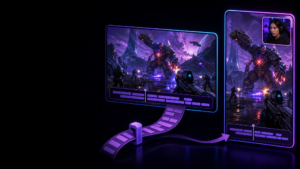
This is where Cutscene Replay is designed to be more than a basic replay recorder. Its compiled clip export is independently configurable and enabled by default, so your ordinary capture path can stay fast. At the same time, you can choose to retain independent source recordings and a capture manifest alongside that flattened result. In practical terms, one replay can produce the clip you want now and an editable package for later.
That distinction matters when you do not know, at the moment you press a hotkey, whether a highlight is a quick post or the beginning of a bigger video. Rather than recording whole sessions “just in case,” you can save the moment first, publish from the compiled version if that is enough, and keep a route to improve the standout clips without recreating the capture.
Explore the Cutscene Replay capture workflow if you want a replay-first setup that combines instant clip saving with optional editable source exports.
How Cutscene Replay handles the hand-off to deeper editing
With editable-source export enabled, Cutscene Replay retains the source media and capture information in addition to the compiled output. The compiled replay and source-footage path use the same selected replay interval, so the files represent the same saved moment rather than separate recordings you must line up by hand.
For a quick social post, open the compiled clip and make the small changes that matter: tighten the start, remove dead time, add captions or adjust the pace. For a clip that needs more control, move into the source-footage workflow instead. That is useful when a different visual arrangement, a cleaner audio mix or a more substantial sequence is worth the extra effort.
Cutscene can also write compatible timeline XML with editable-source exports, including a Final Cut-oriented XML interchange workflow. That does not make it a replacement for a full professional editor. It means the replay capture can continue into an external NLE without manually rebuilding the timing of every retained source from scratch.
A decision guide for common creator scenarios
“I post one or two funny moments after every session.”
Use instant clips. Your bottleneck is likely finding and posting moments, not advanced editing. A replay buffer that saves only the moments you choose will be more useful than a large archive of full recordings. If you are still deciding on replay length and performance settings, start with this guide to saving the last 30 seconds of gameplay and adapt the duration to the type of moments you make.
“I make Shorts, but some clips need a better version later.”
Use both. Publish quickly from the compiled replay, then revisit the source package when a clip deserves stronger framing, extra context, a better audio pass or a more polished cut. This avoids treating every small highlight like a full editing project while protecting the clips that become larger opportunities.
“My facecam and audio choices often need fixing after a session.”
Prioritise editable sources. If you regularly need to change visual positioning or rebalance what viewers hear, the flexibility is not an occasional luxury—it is part of your normal workflow. A compiled clip can still be useful as a fast reference or immediate post, but it should not be your only retained version.
“I send my best gameplay to an editor.”
Use editable packages for selected highlights, ideally with compatible timeline export when your editor works in a supported NLE. Agree on a naming, storage and delivery routine before you build up a large library. The point of source preservation is to reduce clean-up for the editor, not to replace communication about the intended final video.
“I only need clips for Discord or to share with friends.”
Use instant clips unless you know you want to revisit the moment later. A single straightforward file is easier to send and archive. For the wider choice between platform clipping and a replay-capture workflow, read Discord Clips versus replay capture software.
Where OBS, Streamlabs and clipping apps fit
OBS and Streamlabs can make sense if your existing streaming setup already covers your replay needs and you are comfortable configuring your recording paths. Dedicated clipping apps can also be convenient when their capture and sharing workflow matches how you publish.
The question to ask is not which application has the longest feature list. Ask whether it gives you the output you need after a highlight: one quick rendered file, separately editable media, or both from the same saved replay. If you are comparing stream-focused recording setups specifically, this OBS vs Streamlabs recording-clips comparison covers the capture-workflow differences in more detail.
Set a sensible default, then reserve depth for the clips that earn it
A useful starting policy is to make instant compiled clips your everyday default. They keep your replay library simple and help you turn spontaneous moments into posts before the momentum disappears. Enable editable source exports when you have the storage and a real reason to revisit your strongest captures.
Then review your workflow after a few weeks. If you keep wishing you could move elements, clean up sound or expand a short clip into a bigger edit, source preservation is earning its place. If the extra folders sit untouched, focus on faster compiled clips and keep your workflow lightweight.

Keep the quick clip and the option to go deeper
Try Cutscene Replay to save a ready-to-share highlight after the moment happens, with optional editable source files for the clips you want to refine later.
Final recommendation
Choose instant clips when fast, consistent publishing is the priority. Choose editable source packages when revision, audio control and external editing are routine parts of your process. Choose a combined workflow when you want to post quickly without closing the door on better edits later.
For most growing gaming creators, that combined approach is practical: capture only the moments you choose, use the compiled clip for immediate content, and preserve deeper editability for the highlights that prove they are worth the time.