 Download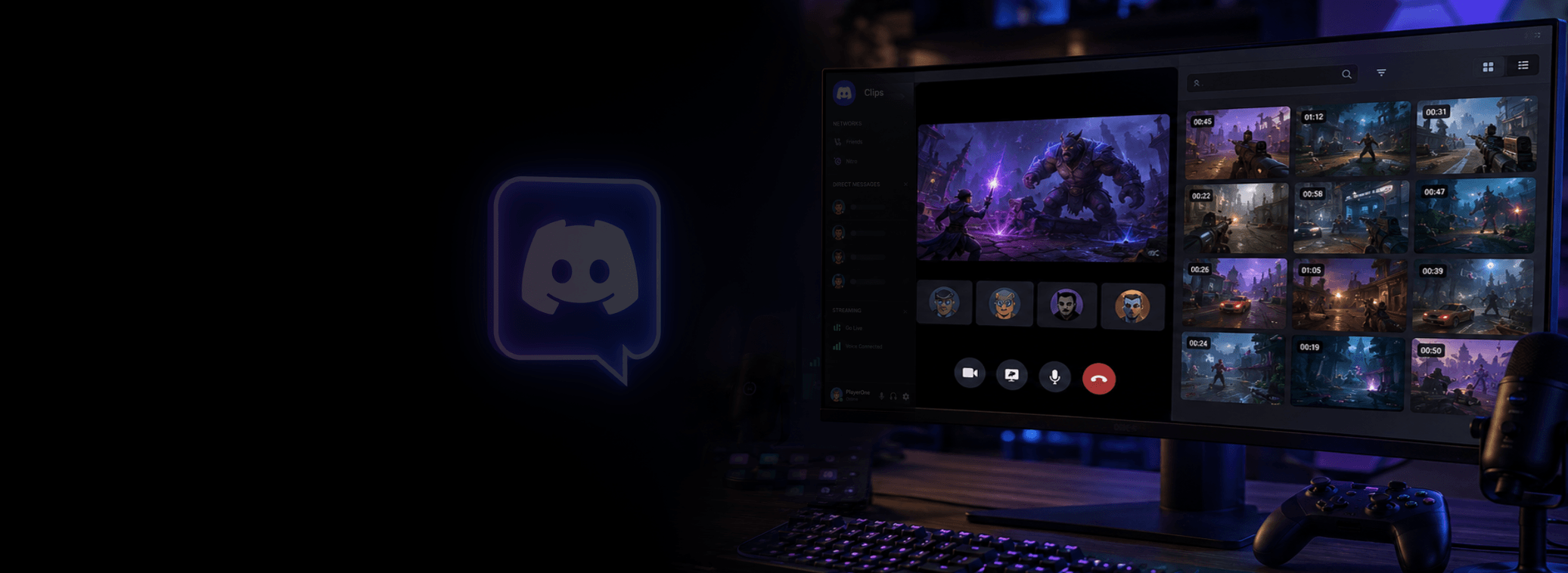
Discord Go Live occupies a slightly different place from streaming on Twitch or YouTube. You can jump into a voice channel, share a game with friends or a community and start streaming without building a traditional broadcast setup around OBS, Streamlabs or a public channel.
That simplicity is one of Discord’s strengths. A stream can just be part of hanging out rather than a production. But it also creates a question when something genuinely worth keeping happens: how do you turn that moment into a clip?
In 2026, there are two useful approaches. Discord has its own Clips feature for saving moments from a stream, while dedicated replay capture software can run locally alongside Discord and give creators a separate capture, organisation and editing workflow. Neither approach is automatically better. The right one depends on what you want to do after you press the clipping hotkey.
How Discord Clips works
Discord Clips is designed for exactly the sort of moment that happens while streaming a game to friends: something funny, impressive or unexpected happens, and you want to save it after the fact rather than having planned a recording in advance.
As of 2026, Discord describes Clips as an Early Access feature for Nitro members on Windows. Once enabled in Discord’s Clips settings, you can use a configurable clipping keybind while streaming. The default is Alt+C.
Discord currently offers clip lengths of 30 seconds, 60 seconds or two minutes. Clips are stored directly on your computer rather than automatically being uploaded somewhere, and you decide which ones you share through Discord.
Discord also provides clipping controls around audio. Depending on the clip and your settings, you can manage relevant game and voice audio as part of the process. That makes the feature much more useful than simply taking a silent screen recording of whatever happened.
When Discord Clips is probably all you need
If Discord is both where the moment happens and where you want the clip to end up, using its built-in clipping feature makes a lot of sense. There is little benefit in adding another application purely for the sake of having another application.
- You mainly stream games socially to friends or a Discord community.
- You only save occasional funny, impressive or memorable moments.
- You want to share the result back into Discord.
- The available 30-second, 60-second or two-minute clip lengths suit the moments you normally save.
- You already have Nitro and access to the Early Access Clips feature on a supported Windows PC.
- You prefer a low-setup workflow contained within the application you are already using.
For that use case, Discord Clips is not a compromise. It is a sensible tool built around quick social sharing. You stream, something happens, you clip it and you can share the result with the same people you were streaming to.
Why creators may want a separate replay capture workflow
The calculation changes when a Discord stream is also a potential source of content. A great moment might start in a voice channel but eventually need to become a TikTok, YouTube Short, Reel, YouTube upload or a clip used somewhere else.
At that point, clipping is only the first step. You also need to find the clip later, trim it, decide on a layout, adjust audio, perhaps add captions or an overlay, export it and keep track of the useful moments you have accumulated.
This is where dedicated replay capture software becomes more relevant. Rather than making Discord responsible for your entire content workflow, you can treat the Discord stream and the local capture workflow as separate things.
Discord can be where you stream without having to be where your content workflow ends.
Discord Clips vs replay capture software
The useful distinction is not “built-in versus better”. It is a difference in purpose. Discord Clips centres the workflow on quickly preserving and sharing a Discord streaming moment. Creator-focused replay software centres it on preserving that moment so you can continue working with it afterward.
Discord Clips: Best suited to casual Discord-native clipping. It has minimal workflow overhead, integrates directly with the stream and provides predefined recent-history lengths. Clips are stored locally and can be shared back with friends and communities in Discord.
Dedicated replay capture software: Better suited to treating captured moments as reusable creator assets. Depending on the software, that can mean more control over the replay workflow, capture sources, clip organisation, layouts, editing and exports intended for platforms beyond Discord.
Practical comparison
- Primary goal: Discord Clips focuses on saving and sharing moments from Discord streams; creator replay software focuses on carrying captured moments into a broader content workflow.
- Setup: Discord Clips is integrated into Discord for eligible users; separate replay software requires another application to run locally.
- Replay duration: Discord provides 30-second, 60-second and two-minute options; replay software may be preferable when your workflow calls for different or longer replay-buffer behaviour.
- Organisation: Discord is convenient for individual stream clips; dedicated creator software can provide a library-oriented workflow for managing captures over time.
- Editing: Discord supports editing its clips; creator-focused software may provide a workflow built around preparing captures for continued editing and export.
- Layouts: A dedicated creator tool can be more useful when you need control over how captured sources are composed or need both horizontal and vertical versions.
- Destination: Discord Clips naturally suits sharing back into Discord; dedicated replay capture is useful when Discord is only one of several destinations.
- Best fit: Choose based on whether you primarily want to remember and share a social moment or turn that moment into an organised piece of creator content.
How to clip a Discord stream with Discord Clips
If you have access to Discord Clips, the built-in route is straightforward. Enable Clips under Discord’s settings before you begin streaming, choose the clip length that makes sense for you and set a clipping keybind you can reach comfortably while playing.
- Open Discord’s user settings and go to the Clips settings.
- Enable Clips if the feature is available on your account and system.
- Choose a clip length of 30 seconds, 60 seconds or two minutes.
- Configure your clipping keybind if you do not want to use the default Alt+C combination.
- Start streaming your game through Discord.
- When something worth saving happens, trigger the clipping keybind.
- Review the saved clip locally and edit or share the moments you want to keep.
Discord advises streaming through an application rather than simply sharing the entire screen when you want game audio included in Clips. It is worth testing your setup before relying on it for an important session, particularly if game and voice audio matter to the final clip.
How to use replay capture software alongside Discord
A replay capture workflow does not need to replace Discord Go Live. You can continue streaming to your friends exactly where you already do while a local replay application keeps a rolling buffer in the background.
When something happens, you press your replay hotkey and the recent moment is saved locally. If you are new to the idea, our guide to recording the last 30 seconds of gameplay on PC explains how replay buffers differ from ordinary continuous recording.
The main benefit is separation of concerns. Discord handles the live social experience. Your replay software handles the footage you might want to turn into content.
A Cutscene Replay workflow for Discord streams
Cutscene Replay fits this model by running locally alongside the stream rather than trying to replace Discord. You can capture gameplay or screens, webcams, microphones, system audio and other sources, then save a replay with a hotkey when something worth keeping happens.
The saved moments go into a built-in clip library, which is useful when you are capturing regularly rather than saving one isolated clip. From there, Cutscene provides a lightweight editor for practical jobs such as trimming, cutting, playback-speed changes, audio adjustments, fades, captions and media overlays.
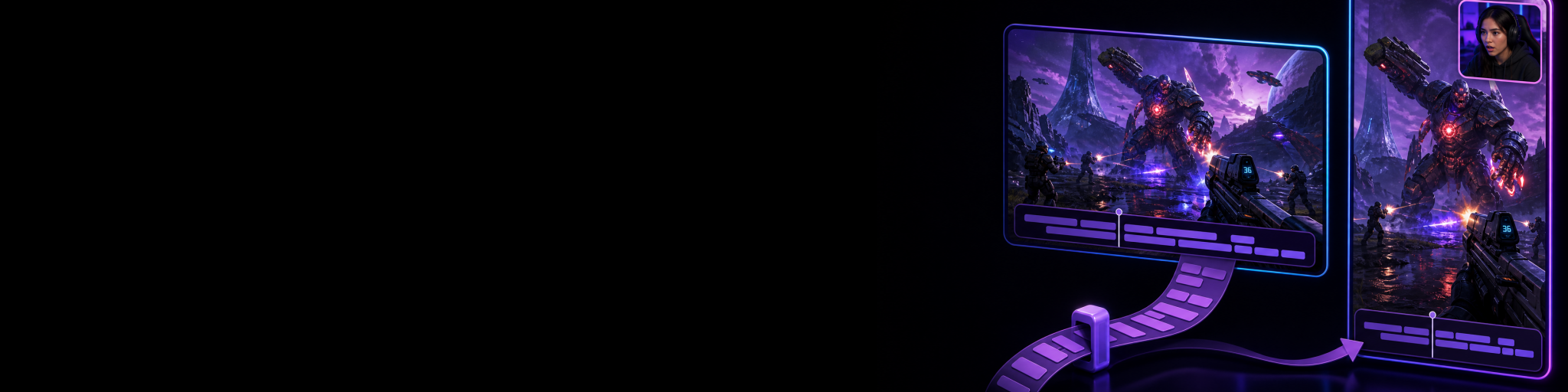
It also supports independent horizontal 16:9 and vertical 9:16 canvases. That matters when the same Discord gaming moment might become a conventional horizontal video as well as a vertical Short, TikTok or Reel.
The aim is not to replace a professional editor such as DaVinci Resolve, Premiere Pro or Final Cut Pro. If a clip needs substantial post-production, a full NLE remains the appropriate tool. Cutscene is intended for the faster capture-to-clip workflow where getting a moment organised, making practical edits and exporting it without a lengthy production process matters more.
What about OBS Replay Buffer?
OBS is another valid way to capture recent gameplay while you use Discord. If you already have an OBS configuration you understand and are happy managing your sources and recordings there, its Replay Buffer can be a practical solution.
That is especially true for creators who already use OBS for broader streaming or recording work. Dedicated creator clipping software becomes more attractive when you specifically want the replay, clip-library and quick-editing parts of the workflow brought closer together.
This is also different from automatic clipping on livestream platforms. Twitch and YouTube workflows may involve platform-specific highlights or automated detection, while Discord clipping usually begins with a much more private, social stream. If you are comparing those approaches too, see our guide to automatic clips for Twitch and YouTube streams.
Should you use Discord Clips or dedicated clipping software?
Start with the destination of your clips. If the answer is mostly “back into Discord”, Discord Clips is likely the simpler choice. It is integrated with the experience, requires little extra workflow and is designed for saving the moments you have while streaming to friends.
If the answer is “Discord, Shorts, TikTok, YouTube and wherever else the clip makes sense”, a separate replay capture workflow becomes easier to justify. You are no longer just saving a Discord memory; you are building a collection of footage that needs to be organised, edited and exported.
- Choose Discord Clips if your priority is casual clipping, low setup overhead and sharing moments with the people you stream to on Discord.
- Consider Cutscene Replay if Discord is where you stream but you want locally captured moments to move into an organised editing and publishing workflow.
- Consider OBS Replay Buffer if you already use OBS and prefer building the replay workflow into a flexible recording setup you manage yourself.
- Use continuous recording when you genuinely need the whole session rather than selected moments, accepting the additional storage and review involved.

Turn Discord stream moments
into creator-ready clips
If you want a local replay workflow with a clip library, quick editing and horizontal and vertical canvases alongside Discord, try Cutscene Replay.
The best Discord clipping workflow is the one that matches what happens next
Discord has made streaming games to friends deliberately easy, and its Clips feature extends that simplicity to saving recent moments. For social streaming and occasional clips, that may be exactly the right amount of tooling.
Creators have a different problem. The memorable moment is often only the beginning. It still needs to be found later, shaped into something watchable and prepared for the places where an audience will see it.
That is why Discord clipping software should be chosen around the complete workflow rather than the clipping hotkey alone. Use Discord Clips when the stream and the sharing destination are closely connected. Use a dedicated replay workflow when Discord is where the moment happens, but not necessarily where that moment ends.