 Download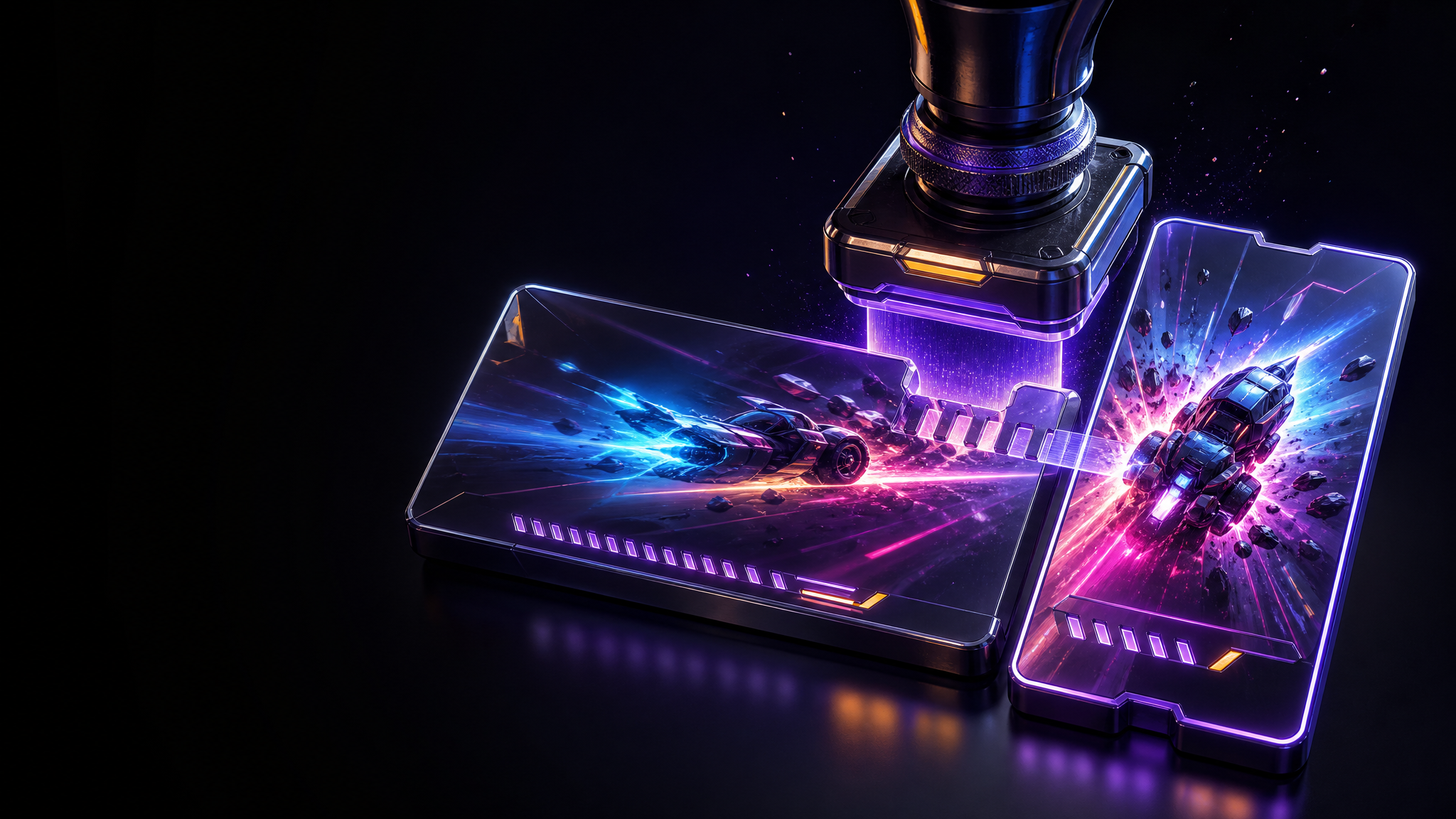
If you already have a landscape version for YouTube or a stream highlight and a portrait version for Shorts, TikTok or Reels, the slow part is often not the export. It is repeating the edit: finding the same opening frame, trimming the same dead air, making the same punch-in, placing the same captions and checking the same beat twice.
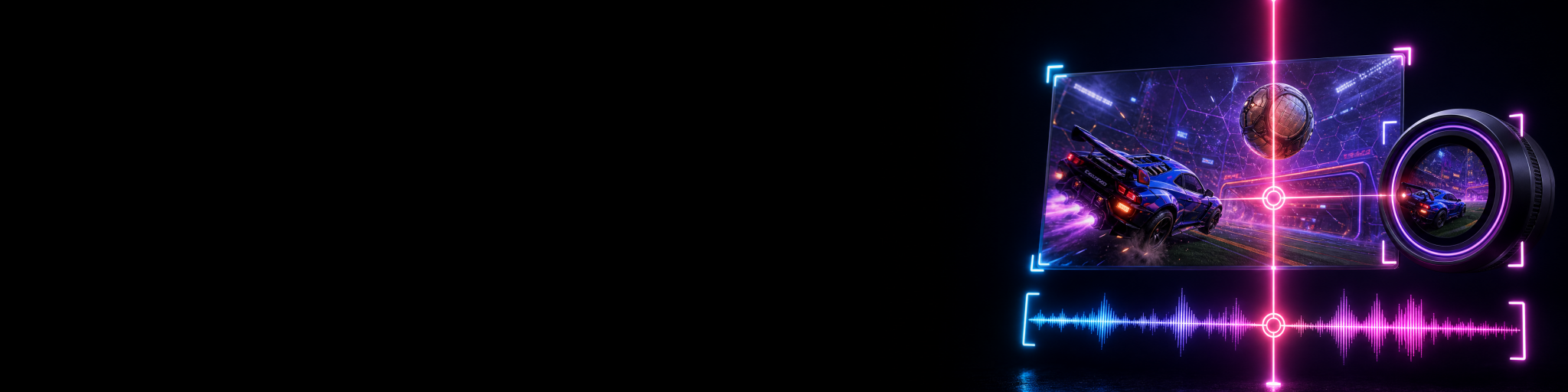
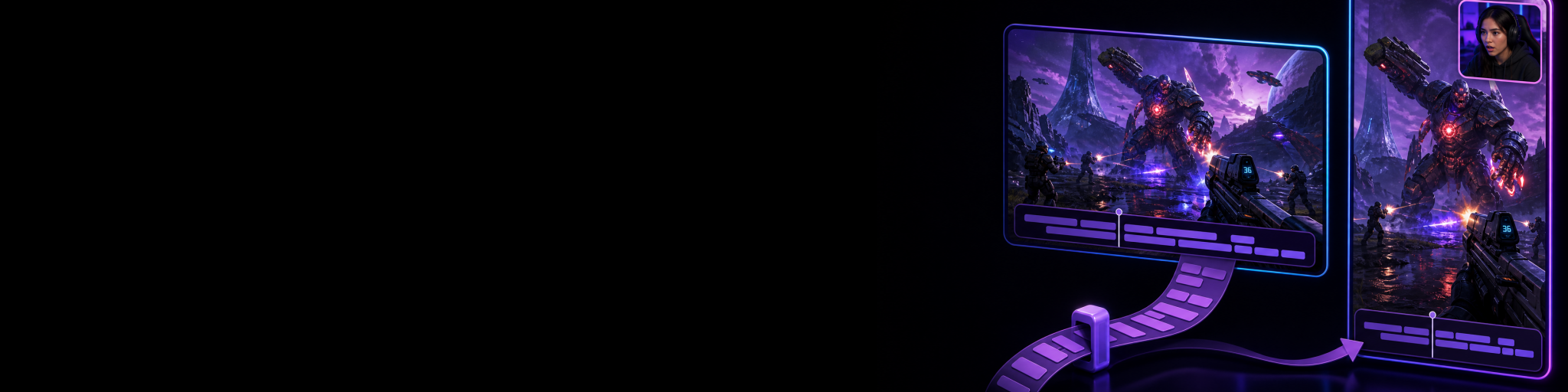
The better approach is to treat both files as two platform versions of one underlying moment. Make shared editorial decisions once, then handle the layout-specific choices separately. That lets the 16:9 clip stay useful for wider gameplay, HUD detail and longer context, while the 9:16 clip gets the tighter framing and pacing needed for phone viewing.
The important caveat is simple: you can only reuse work safely when the two clips represent the same time range and are properly aligned. If the portrait version is a separately downloaded clip with a different start point, you may spend more time lining it up than you save. Paired captures created from the same replay are far easier to edit together.
Separate the shared edit from the format-specific edit
Not every choice should be copied between landscape and portrait. The trick is knowing which decisions describe the story of the highlight and which decisions describe how that story fits the frame.
- Usually shared: selecting the moment, removing pauses, cutting failed attempts, tightening reactions, choosing playback-speed changes, adding basic fades, setting the overall start and end point, and writing captions.
- Usually format-specific: crop position, facecam size and placement, HUD protection, overlay placement, visual zoom amount and any text that must avoid platform interface areas.
- Sometimes shared, then checked: music timing, sound effects, caption position, callouts and emphasis effects. The timing may transfer cleanly, but the placement still needs a quick review in portrait.
This separation prevents a common mistake: copying an entire landscape edit to a vertical canvas and assuming the job is finished. A copied edit should preserve the storytelling work. It should not force the portrait version to inherit a layout that hides the action or covers important gameplay information.
Start with a clean master edit
Choose one version as the master—not because it is more important, but because it is the clearest place to make the first pass. For a gameplay-heavy highlight, that is often the landscape clip. For a reaction-led short with a simple gameplay background, it may be portrait.
- Trim the clip to the actual payoff. Remove loading, menu navigation, long setup and any reaction that does not add context.
- Make the pacing decisions: cuts, speed changes, audio emphasis and simple transitions.
- Add the spoken captions or key text once the timing is stable.
- Watch the full master edit without stopping. If the joke, clutch or reveal works there, you have a reliable editorial foundation to reuse.
- Only then move to the partner format for its framing and placement pass.
Doing captions before the cut timing is settled creates avoidable repair work. Every later trim can shift words, split lines awkwardly or leave text attached to a section you remove. Get the structure right first; then let the captions follow that structure.
Why manual duplication still becomes tedious
You can duplicate a project in most editors, swap the source file and manually realign it. That is workable for an occasional highlight. But it has several friction points: both clips need identical timing, you need to remember which file is which, edits can drift after revisions, and captions commonly have to be recreated or painstakingly repositioned.
The problem becomes more obvious when you publish regularly. A creator may make the first landscape edit, create a vertical version, revise the hook after watching it back, then realise the same revision is needed in both projects. At that point, the work is no longer creative; it is administrative duplication.
If you are still capturing one widescreen recording and manually rebuilding a vertical edit, first make sure the vertical version has been deliberately framed rather than centre-cropped. This guide to making vertical gaming clips without cutting off the action covers the layout decisions that deserve their own pass.
Use paired clips when the two formats come from the same moment
The cleanest workflow begins before editing. Capture the same replay moment as intentional horizontal and vertical outputs, with both versions aligned to the same interval. That gives you a real pair: two different canvases for the same gameplay event, rather than two unrelated files that happen to look similar.
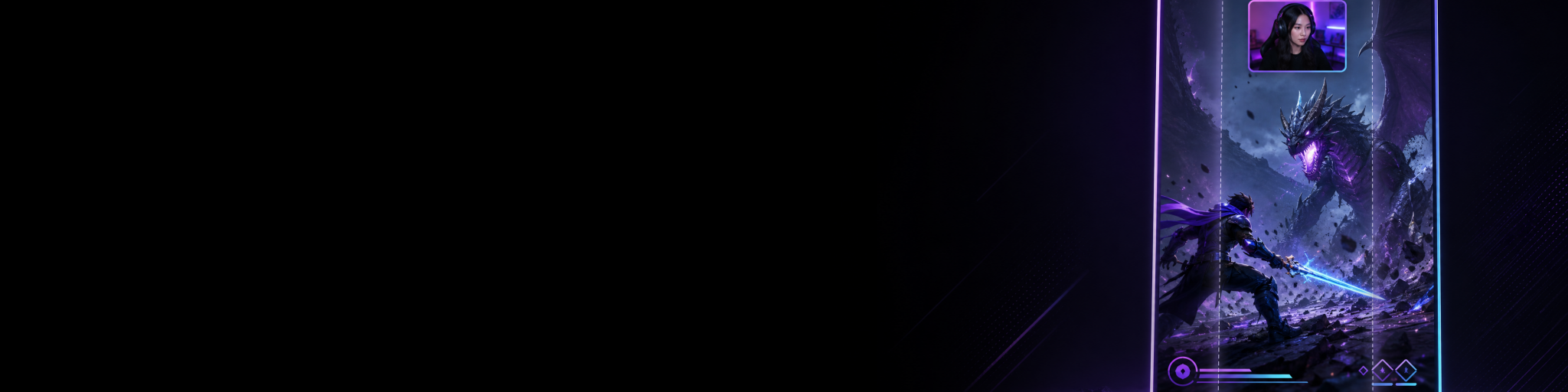
Recording horizontal and vertical gameplay at the same time is useful here because it creates the prerequisite for efficient shared editing. The formats can have independent layouts at capture time—so the portrait version can protect the facecam, action and HUD—but still refer to the exact same highlight.
Once you have a true pair, the ideal editing system should recognise that relationship. You should be able to open one version, jump directly to the other and know that both represent the same clutch, reaction or funny moment. That removes filename hunting and makes it practical to compare the two formats while you work.
How Cutscene Replay avoids rebuilding the edit
Cutscene Replay is built around this paired-clip workflow. When you capture matching horizontal and vertical outputs from the same dual-canvas replay, Cutscene stores partner metadata for the pair. In the Clip Library and editor, that means the landscape and portrait versions are recognised as related rather than being treated as two anonymous exports.
In practice, you can begin editing one clip, then use partner navigation to open its matching format. That is useful even before copying anything: polish the landscape version, inspect the portrait partner immediately, and check whether the hook, cut points and caption timing still suit the phone-first presentation.
When the core edit is ready, Cutscene can copy compatible timeline, edit and caption work to the paired clip. The benefit is not that both formats become identical. It is that you do not have to rebuild the common editorial layer—the trims, pacing and caption work—before making the remaining portrait-specific adjustments.
For example, imagine a 35-second clutch with a quick reaction at the end. You cut the setup down to eight seconds, remove a quiet mid-round pause, speed up a reset and add captions for your callout and reaction. Copying compatible edit state to the partner clip gives the vertical version the same narrative structure and caption work. You can then focus on the edits that actually need a second decision: moving the captions away from the HUD, checking facecam size and making sure the action stays visible in the tall frame.
That is a more useful division of labour than making two edits from scratch. Cutscene Replay handles the relationship between the two platform versions, while you keep control of the choices that should differ. You can explore the paired capture and editing workflow in Cutscene Replay.
A practical paired-edit workflow
- Capture a matched pair. Set up independent 16:9 and 9:16 compositions so each format is usable from the start. Save the same replay moment to both outputs.
- Open the clearer master version. Build the story: trim to the payoff, remove downtime and set the pace.
- Add captions after timing is stable. Keep them readable and concise. The words and timings are generally reusable; final placement may not be.
- Navigate to the partner clip. Check its framing before copying. Confirm the portrait canvas has space for the important gameplay action, facecam and text.
- Copy compatible edit and caption work. Bring across the shared editorial decisions instead of repeating them manually.
- Do a format-specific review. Adjust crops, safe zones, facecam placement and any captions that overlap important visual information.
- Export each version for its destination. Watch both files on the type of screen viewers will use most: a normal player for landscape and a phone-sized preview for portrait.
What to check after copying edits to portrait
Copied edits save time, but they do not remove the need for a final vertical quality check. Portrait video has less horizontal room, and gaming footage often places essential information at the edges.
- First second: Does the portrait clip make sense immediately, or does it rely on wide-screen context that is now off-frame?
- Action visibility: Can viewers still see the player, target, objective or key UI element?
- Facecam balance: Is your reaction useful enough to retain, and does it cover anything important?
- Caption safety: Are subtitles readable without colliding with HUD elements, platform controls or on-screen notifications? Use practical gameplay clip safe zones when positioning text and overlays.
- Rhythm: A cut that feels energetic in a 16:9 highlight can feel abrupt in a vertical short if the viewer has less visual context. Add a little context only where it genuinely helps.
- Ending: Make sure the final reaction, score screen or payoff has enough time to land in both formats.
When you should not copy the same edit
Shared editing is not a rule that every platform version must follow. Build separate edits when the audience goal changes substantially. A two-minute landscape highlight may need match context, team comms and a slower setup; a 20-second Short may only need the final play, one line of context and the reaction.
Likewise, do not force copied captions into a portrait clip if they require a different hook. Landscape viewers may understand the game state from the full HUD, while portrait viewers may need a short opening line that explains what is at stake. Reusing the core edit is still helpful, but the vertical version can earn a different introduction.
Think of edit copying as a starting point, not a lock. It removes repeated mechanical work so you have more time for the judgement calls that make each version watchable.
Captions are often the biggest time saver
For many creators, captions are the most annoying part of maintaining two edits. Transcribing twice, correcting the same words twice and re-timing the same sentence twice is difficult to justify when both clips come from the same audio.
With Cutscene’s paired workflow, compatible caption state can travel with the edit to the matching partner clip. You can then make only the placement or line-break changes that portrait requires. For a deeper caption workflow, see how to add captions to gaming clips quickly.
Keep captions short enough to survive both formats. Break longer thoughts into natural phrases, avoid placing critical words at the extreme edges and prioritise the spoken line that makes the highlight understandable without sound.
The goal is fewer duplicate decisions, not one identical video
Editing landscape and portrait gaming clips without starting over means sharing the work that describes the moment while preserving the freedom to compose each format properly. Capture aligned versions, establish one strong master edit, transfer the compatible timeline and caption work, then give each canvas a short deliberate review.
That approach is especially useful if you regularly publish a wider YouTube or stream-highlight version alongside Shorts, TikToks or Reels. Instead of maintaining two disconnected projects, you maintain one story with two platform-aware presentations.
Make paired gaming clips easier to finish
Capture matched horizontal and vertical highlights, move between partner clips and reuse compatible edits and captions instead of rebuilding the same work twice.
Final takeaway
Do not solve a two-format workflow by doing the same edit twice. Let the landscape and portrait clips share their cuts, timing and captions wherever that makes sense, then spend your attention on the framing, safe zones and hook that make each version right for its audience. With paired clips in Cutscene Replay, that process stays organised from capture through export.