 Download
If an editor needs to reframe your gameplay, move a facecam, clean up your commentary or rebalance game sound, the important decision happens before the highlight is saved: choose a replay-buffer structure that preserves the parts they will need.
A finished replay can look perfect and still be difficult to edit. Once gameplay, camera, overlays and audio have been baked into one video, an editor can trim it and add effects, but they cannot truly separate what was merged. The practical choice is usually between a composite master, a replay with separate audio tracks, and a replay package containing independent visual and audio sources.
For freelance editors and small teams, the best format is not automatically the most elaborate one. It is the smallest capture package that still lets the editor make the changes your content actually needs.
The three replay structures editors receive
1. Composite master: one finished video file
A composite master is one rendered video: gameplay, webcam, graphics and the chosen audio mix are already combined. It is the simplest file to save, transfer and open. It is also the least flexible.
This structure works when the intended edit is light: cut dead time, add captions, crop slightly, add music or export the clip in a new format. It is a reasonable choice for quick highlights where the live layout is already correct and the mix does not need repair.
Its limitation is permanence. If the facecam covers a key HUD element, the editor cannot move it without covering the affected gameplay area with a replacement. If your microphone is buried under game sound, they can only process the combined mix rather than turn your voice up independently. A crop can change framing, but it cannot recover pixels that were hidden behind an overlay or outside the original composition.
2. Composite video with separate audio tracks
The middle option keeps one visual video layout but preserves audio as distinct tracks or files, for example, microphone, game sound and voice chat. This is often the right structure when your visual layout is final but your audio routinely needs attention.
An editor can raise quieter commentary, reduce an overly loud game, mute a problem voice-chat moment or choose the cleanest speech source for captions. That is a major improvement over a single mixed soundtrack.
But the visual side is still baked. Separate audio does not make a facecam movable, remove stream graphics, or let an editor build a different composition for a vertical short. If reframing is part of the brief, this format solves only half the problem. For a deeper explanation of the audio side, see how to capture game audio, voice chat and microphone on separate tracks.
3. Aligned editable source package
An editable source package preserves the replay alongside the original parts used to make it: eligible visual inputs such as gameplay and webcam, plus independent audio sources. Crucially, those files must remain aligned to the same replay interval. Otherwise, an editor receives a folder of media but still has to work out what belongs together and where each source starts.
This is the structure to choose when an editor may need to resize gameplay, reposition a facecam, make a fresh vertical composition, repair a mixed soundtrack, or make creative decisions that were not possible while you were playing. It retains the most options, but it also means more files to store, transfer and manage.
Match the source layout to the edit your creator actually needs
Start with the final deliverable, not the recorder setting. Ask what the editor is expected to change after capture.
- Only trimming, captions and quick publishing: a composite master is usually enough.
- Better commentary, game sound or voice-chat control: preserve separate audio tracks or source audio.
- Moving a facecam, changing the crop or rebuilding the composition: preserve independent visual sources as well as audio.
- A horizontal upload and a deliberately different vertical version: preserve sources that can be recomposed, rather than relying on a centre crop of the finished master.
- Hand-off to a specialist editor or a professional editing application: prioritise aligned sources, clear file organisation and any supported project or timeline metadata.
A useful rule is simple: every element you may want to change later must exist separately at capture time. If gameplay and webcam are flattened together, they behave as one picture. If microphone and game sound are mixed together, they behave as one audio track.
Why alignment and file relationships matter as much as separate tracks
“Separate files” can sound sufficient, but separation without organisation creates its own editing problem. A hand-off becomes slow when an editor has to identify which camera file matches a particular replay, manually line it up with gameplay, then determine which audio sources belong to the same moment.
A good replay package has three properties: the source recordings cover the saved replay interval, the sources stay in sync with one another, and there is a reliable record of their relationship. This is what makes the package usable rather than merely comprehensive.
For example, imagine a 45-second clutch saved after a stream. Your editor should be able to open the package and immediately see the matching gameplay, camera and audio sources for those same 45 seconds. They should not need to hunt through a long session recording, guess at offsets or rebuild timing by hand.
This is also why a flattened master can still be worth keeping. It provides a quick reference for the original replay and may be ready to publish with no further work, while the sources remain available for the highlights that deserve a more involved edit.
Where common replay workflows fit
Many replay-buffer setups are designed primarily to save a finished moment quickly. That is efficient when you want a shareable clip and already know the composition and mix are final. It becomes restrictive when post-capture adjustment is the reason for recording.
A conventional recorder can sometimes be configured to produce multiple audio tracks or separate recordings, but assess the actual output rather than the settings screen. Before committing to a workflow, save a test replay and check whether an editor receives independent files, whether they start at the correct point, and whether the intended editing application can interpret the hand-off without manual reconstruction.
Tools such as OBS or Streamlabs can be sensible when their output structure matches the assignment and you are comfortable building the required recording workflow. A highlight-oriented tool may be enough when only a finished clip matters. AI clipping services can help discover moments, but they do not automatically restore separate camera and audio sources if those were never preserved.
When Cutscene Replay is the better hand-off structure
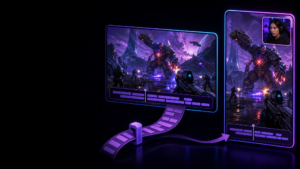
Cutscene Replay is built for the case where a replay needs to remain editable after the moment has happened. With editable Source Footage enabled, it can retain independent source recordings alongside the flattened replay rather than forcing you to choose between a quick clip and a deeper edit path.
That means an editor can work with original visual sources individually, so gameplay and facecam can be reframed rather than treated as a single baked image. Independent audio sources can also remain available, allowing commentary and game sound to be rebalanced after the highlight. A capture manifest records the relationship between the replay and its source media, helping the editor reconstruct and validate the source project without manually matching anonymous files.
For workflows that continue outside the app, Cutscene Replay can optionally write compatible timeline XML with editable-source exports. That does not remove the need to agree on the editor’s delivery requirements, but it can avoid manually rebuilding track timing from scratch. The practical hand-off workflow is covered in more detail in this guide to replay capture for DaVinci Resolve and Final Cut Pro.
The trade-off is intentional: saving more editable material requires more storage and more disciplined media management than keeping only a compiled clip. Use it for the moments likely to need reframing, mixing or client-level polish, not necessarily for every ordinary save. This comparison of instant clips and editable source packages can help if you are deciding how often to preserve the full package.
A practical capture checklist before you send footage to an editor
- Ask for the required deliverables first: one finished landscape clip, vertical shorts, a long-form segment, or several versions.
- List the elements that may need changing: gameplay, facecam, microphone, game audio, voice chat, overlays or captions.
- Save a short test replay using the proposed settings.
- Open that test in the editor’s chosen application and verify sync, source availability and import behaviour.
- Decide whether to deliver a composite master as a quick reference alongside the editable package.
- Use clear folder names and keep the complete replay package together until the edit is signed off.
- For future clips, preserve sources whenever you expect to change framing after capture; moving a facecam later depends on having those independent visual recordings.

Keep the replay editable when the clip needs more than a quick trim
Try Cutscene Replay to save a ready-to-use replay while retaining optional independent sources for reframing, audio mixing and deeper editor hand-off.
The decision in one sentence
Choose a composite master when the edit is mostly finishing work, choose separate audio when sound is the only variable, and choose an aligned editable source package when the editor needs genuine control over both picture and sound.
For creators who save spontaneous gameplay moments but still want professional editing options, capture structure is not a technical footnote. It determines whether the editor is shaping the original material, or trying to work around decisions that were permanently baked in during the replay save.