 Download
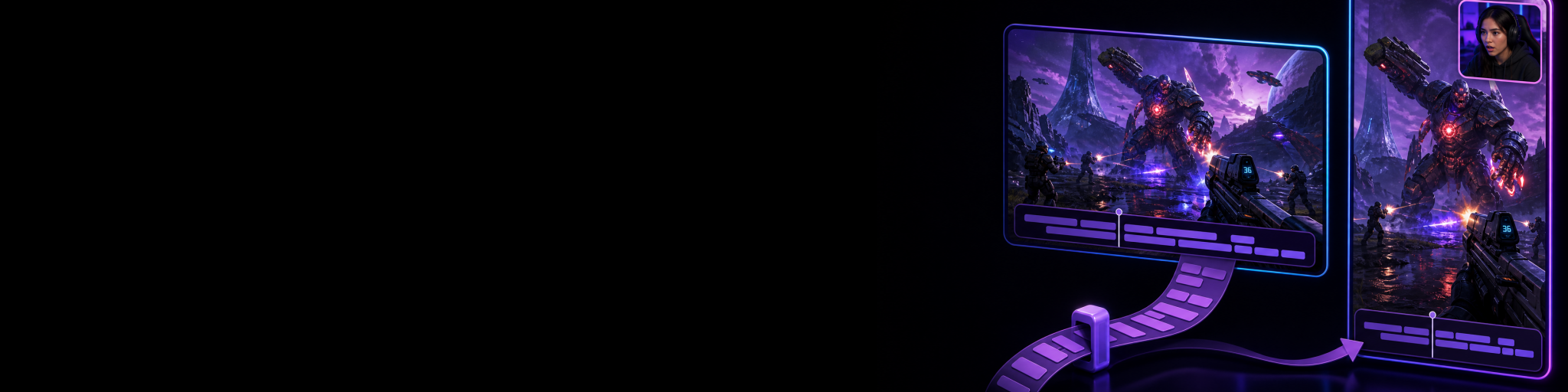
A replay clip is supposed to save time: something worth keeping happens, you save the last minute, and you have a highlight ready to review. The problem starts when that same moment needs a proper edit in DaVinci Resolve or Final Cut Pro. If the capture arrives as one flattened video, your gameplay, facecam and audio decisions are already baked in. If it arrives as a folder of separate files with no reliable relationship between them, you can lose the time you meant to save by syncing and rebuilding the project.
The better approach is replay capture that preserves the finished moment and its editable parts in a package that keeps their timing intact. That lets you make a quick clip when it is enough, while keeping a clean path to deeper work when the highlight deserves it.
Why replay clips become awkward in a professional editor
A single exported replay is convenient for posting quickly, but it is restrictive. You can trim it, grade it and add graphics, but you cannot independently move a facecam that was baked over gameplay or turn down game sound without affecting your commentary. That is fine for a simple share, not for an edit that needs room to change.
The opposite setup can be awkward too. A traditional recorder can leave you managing multiple recordings, track choices and export preparation before editing. Separate files are only genuinely useful when you can tell which gameplay, camera and audio files belong to the same saved moment—and when they begin at the same point.
- A visual source should remain independently editable, so gameplay and camera framing are not permanently locked together.
- Audio sources should remain independently editable, so commentary and game sound can be balanced for the final cut.
- The capture needs dependable timing information, so the sources can be reconstructed as one moment rather than manually aligned by eye.
- A practical hand-off should not force you to recreate every source relationship before the creative edit can begin.
What an editor-ready replay package should contain
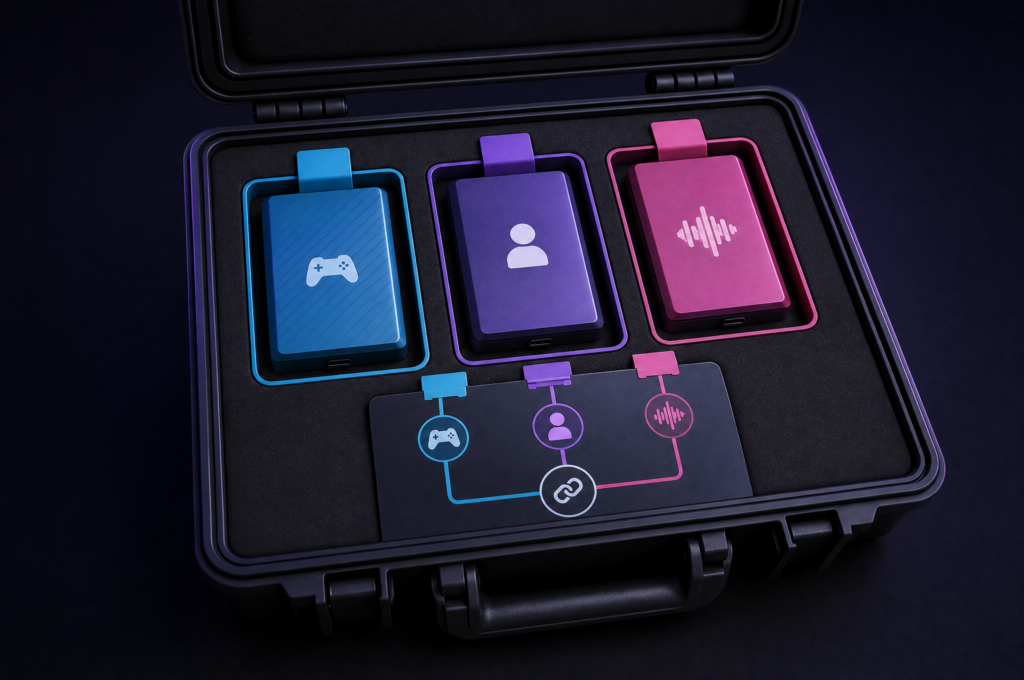
For a deeper edit, think of the replay as a small source package rather than only a video file. The useful package contains the captured moment, the independently retained source media, and information that describes how those files relate to the replay.
That relationship matters. A camera recording and gameplay recording may look easy to match at first, but small offsets become obvious when you cut on a reaction, line up a sound effect or switch between layouts. A capture manifest keeps the replay and its sources associated, allowing the source-based project to be reconstructed and validated without treating a pile of files as a manual syncing exercise.
For creators, the outcome is straightforward: save the highlight after it happens, then decide later whether the compiled clip is enough or whether the individual sources need a proper edit.
A replay-to-NLE workflow that avoids rebuilding the edit
The goal is not to replace DaVinci Resolve or Final Cut Pro. It is to make sure the capture stage does not create needless preparation work before you reach them.
- Capture the sources you may need later. For example, preserve gameplay and camera as separate visual sources, and retain commentary separately from game sound where your edit needs that control.
- Save the replay when the moment happens. You keep the practical advantage of replay capture rather than recording every session only in case something useful occurs.
- Keep the source package with the replay. The manifest provides the relationship between the saved highlight and its independently recorded media.
- Start with the ready clip when speed matters. It is useful for reviewing the moment, sharing a quick version or confirming that the replay is worth further work.
- Use the editable sources for the version that needs refinement. Reframe gameplay, reposition a camera source, rebalance audio or build a more deliberate edit without trying to undo a flattened recording.
- Export compatible timeline XML alongside editable source exports when continuing in a supported NLE workflow. This carries the source-based project forward instead of requiring manual reconstruction of track timing.
Where Cutscene Replay fits
Cutscene Replay is designed for this exact split between fast replay saving and optional deeper editing. When editable source footage is enabled, it can retain independent source recordings alongside the flattened replay. Eligible visual inputs remain individually available, and independent audio sources can remain available for later mixing.
That changes what a saved highlight gives you. Instead of choosing between a quick clip and a flexible project, you can preserve both from the same replay: a compiled output for immediate use, plus source media for the moments that need more attention. The capture manifest stores the relationship between that replay and its source files, so the source workflow is not dependent on manually identifying anonymous recordings later.
For hand-off work, Cutscene can also write compatible timeline XML with editable source exports. Its source export workflow supports conventional XML interchange used by DaVinci Resolve-style workflows, while Final Cut-oriented XML interchange is also supported. In practice, that means the capture can move into your chosen editor with its source timing prepared, leaving your editing time for creative decisions rather than setup.
When separate replay sources are worth the extra storage
Not every saved moment needs an editable package. A clean, finished clip is usually enough for a quick social post or a simple highlight. Separate sources become worth it when the edit may change after capture.
- Your facecam covers a HUD element or needs a different position for the final edit.
- Your gameplay needs a different crop or composition after you review the moment.
- Your reaction audio is useful, but the game or voice-chat level needs adjustment.
- A freelance editor will take over the highlight and needs usable original elements rather than a baked recording.
- You want a fast first version now but may turn the same moment into a longer, more polished piece later.
- You need to bring a saved replay into DaVinci Resolve or Final Cut Pro without spending time manually matching source starts.
If your only requirement is a finished upload, source footage can be unnecessary overhead. If you regularly discover editing problems after the moment has happened, it is a safety net that preserves options you cannot recover from a flattened file.
Avoid these hand-off mistakes
The most common mistake is treating separate files as automatically editable workflow. They are not enough on their own. They need a known relationship, consistent capture timing and a clear way to continue the project.
- Do not rely on a baked gameplay-and-camera file if you expect to move either element later. Preserve separate visual sources instead.
- Do not assume audio can be fixed cleanly after capture if microphone and game sound were permanently mixed together.
- Do not rename, move or separate source files from their associated replay package without keeping the capture relationship intact.
- Do not make the replay stage do the job of a full professional editor. Capture efficiently, then use Resolve or Final Cut Pro for the deeper colour, effects, sound and timeline work they are built for.
- Do not record entire sessions solely because an occasional clip might need advanced editing. A replay workflow can preserve the moments you choose while still retaining useful source material.

Keep replay clips ready for deeper edits
Try Cutscene Replay when you want to save the moment quickly while retaining source footage for the edits that need more control.
The practical choice: fast clip, flexible project, or both
A good replay workflow should not make you decide how serious an edit is before the highlight even happens. Save the moment first. Keep a ready-to-use version for speed. Preserve separately editable gameplay, visual and audio sources when you may need control later. Then hand the capture into DaVinci Resolve or Final Cut Pro with compatible timeline data instead of rebuilding timing from scratch.
That is the useful division of labour: replay capture protects the spontaneous moment; a professional NLE handles the deeper edit. Cutscene Replay makes the hand-off practical by keeping the original sources connected to the saved replay rather than leaving you to reconstruct the moment yourself.