 Download
If you use OBS Replay Buffer and want to publish gaming highlights as TikToks, Reels or Shorts, the real question is not whether OBS can save a vertical clip. It can, once you configure a vertical canvas and output. The harder question is whether your capture workflow produces a vertical version that is actually framed for a phone screen while also preserving a useful 16:9 version for YouTube or your stream archive. OBS supports replay-buffer hotkeys alongside its canvas and output-resolution settings, but those settings are centred on the output you have configured. ([obsproject.com](https://obsproject.com/kb/obs-studio-overview?utm_source=openai))
For creators who only occasionally need a vertical post, OBS remains a sensible free option. But if every strong moment needs both formats, an OBS Replay Buffer alternative can reduce the repetitive work of swapping scenes, rebuilding layouts or rescuing a landscape clip with a centre crop.
The short answer: which alternative fits your workflow?
- Choose Cutscene Replay if you want to save the same highlight in horizontal and vertical formats at once, with a separate layout for each format.
- Choose Medal if you mainly want quick game clips with a simple hotkey-driven workflow and sharing tools.
- Choose Streamlabs Desktop if it is already your streaming setup and you want a familiar instant-replay workflow.
- Stay with OBS Replay Buffer if you value deep manual control, do not mind configuring scenes and primarily make one output format at a time.
The key distinction is composition. A 9:16 export is not automatically a good vertical clip. If a game’s action, minimap, subtitles and facecam all compete for the narrow frame, a later crop can cut off the context that made the moment worth sharing.
Why OBS Replay Buffer can become awkward for vertical clips
OBS is flexible because you can build scenes from sources, select a base canvas and set an output resolution. Its official guide also covers enabling Replay Buffer and assigning a hotkey to save it. ([obsproject.com](https://obsproject.com/kb/obs-studio-overview?utm_source=openai)) That makes it capable of a vertical replay workflow: create a portrait scene, configure the canvas and output for 9:16, then save highlights from that setup.
The trade-off appears when one gaming session serves more than one destination. A landscape scene may put gameplay front and centre with a small facecam in a corner. A portrait scene often needs a taller gameplay crop, a differently positioned facecam, and deliberately protected space for captions or game information. Those are different compositions, not merely different export dimensions.
- One-format workflow: OBS Replay Buffer is straightforward when your target is consistently 16:9 or consistently 9:16.
- Two-format workflow: You need to plan how you will maintain separate scenes, save the required versions and avoid recreating the same highlight later.
- Post-crop workflow: Saving wide first and converting later is viable for some clips, but can require reframing, background treatment or a redesigned layout when the original action does not fit a phone screen.
If your current issue is framing rather than capture itself, this guide to making vertical gaming clips without cutting off the action covers the safe zones and layout decisions that matter before you export.
What to look for in a vertical replay-buffer alternative
Do not judge an alternative only by whether it has a “clip” button. For vertical gaming content, assess the whole route from gameplay to publishable file.
- After-the-moment saving: Can you save the last 30, 60 or 90 seconds with a hotkey rather than record every session in full?
- Portrait-ready composition: Can you deliberately frame gameplay, webcam and overlays for 9:16 rather than rely on a centre crop?
- Horizontal and vertical coverage: Can the same moment serve YouTube and vertical platforms without having to play it twice or rebuild it from scratch?
- Capture performance: Can your PC sustain the chosen encoder, resolution and replay duration while you play?
- Editing hand-off: Is the saved clip ready for a quick trim and captions, or will every highlight require a separate editing project?
Replay duration still matters whichever tool you choose. Longer buffers retain more potential footage but use more memory; Streamlabs makes the same point in its Instant Replay setup guidance. ([support.streamlabs.com](https://support.streamlabs.com/hc/en-us/articles/4413174894235-How-to-Setup-Instant-Replays-on-Streamlabs-Desktop?utm_source=openai)) For a practical starting point, see recommended replay buffer settings for 1080p 60 FPS gameplay.
Cutscene Replay: built for two purpose-made formats from one moment
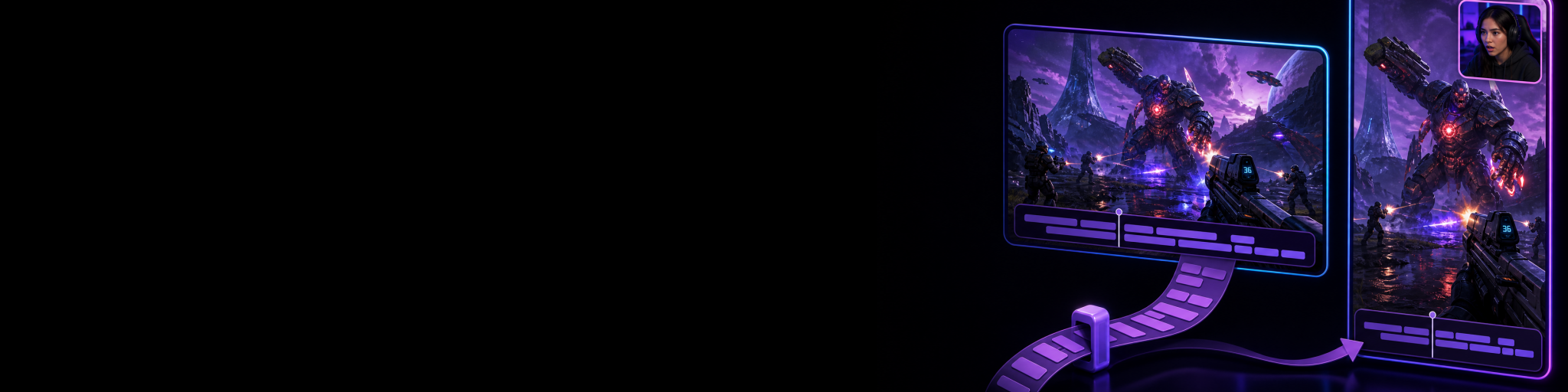
Cutscene Replay is the strongest fit when your main reason for looking beyond OBS is dual-format clip production. It runs two recording canvases from the same live source session: one Horizontal and one Vertical. When you save a replay, both versions represent the same moment.
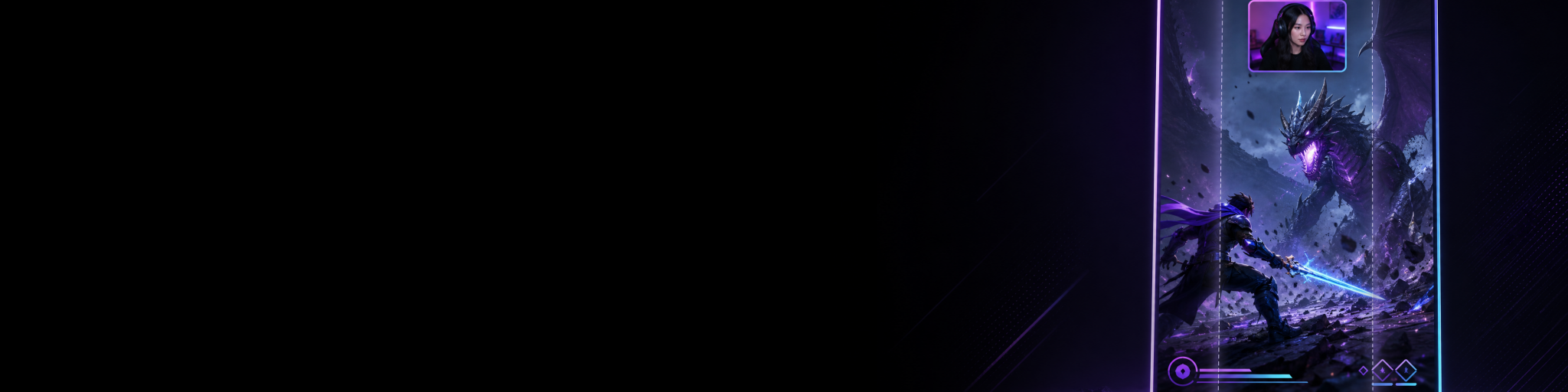
Crucially, the Vertical canvas is not just a crop of the Horizontal canvas. Each canvas retains its own layout, including layer arrangement, transforms, crops and background state. You can use the same gameplay and webcam sources in both, while scaling and positioning them differently for each output.
In practice, that means you can keep a conventional widescreen gameplay layout for YouTube while giving the portrait version a taller gameplay area, a larger facecam and room for captions. You make those choices before the highlight happens, then save both deliverables from the same replay interval.
- For YouTube or stream highlights: build a 16:9 scene that prioritises the full game view.
- For TikTok, Reels and Shorts: build a 9:16 scene that protects the action, HUD and facecam in a phone-first layout.
- When the moment happens: save the replay once and receive matching horizontal and vertical clips rather than choosing one format and reconstructing the other later.
That does not make Cutscene a replacement for a full professional editor. It is a capture-and-fast-edit workflow for creators who want to get clips out quickly. But for the specific problem of turning one unexpected gaming moment into properly framed platform versions, its independent dual-canvas capture solves the limitation that a later crop cannot.
Medal: a convenient clip-first option
Medal is worth considering if your priority is quick gameplay clipping with minimal setup. Its current support documentation describes hotkeys for multiple clip lengths, automatic game detection, optional automatic clipping and either clip or session recording modes. ([support.medal.tv](https://support.medal.tv/support/solutions/articles/48001271487/?utm_source=openai)) Its clip-capture mode can save recent gameplay with a button press rather than keeping only full-session recordings. ([support.medal.tv](https://support.medal.tv/support/solutions/articles/48001157616-how-to-choose-your-recording-method?utm_source=openai))
That makes Medal a good fit for players who want to catch highlights quickly and decide what to share afterwards. Before choosing it for a vertical-content pipeline, check whether its available layout, output and editing options suit the specific games and platforms you publish to. Fast clipping is useful, but it is separate from the question of whether a matching 16:9 and independently composed 9:16 version can be prepared at capture time.
Streamlabs Desktop: practical if it is already your streaming hub
Streamlabs Desktop includes Instant Replay, which records content in the background and saves it on command. Its setup guide instructs users to enable Replay Buffer in Output settings, choose a buffer length and configure hotkeys; it also notes that longer buffers require more memory. ([support.streamlabs.com](https://support.streamlabs.com/hc/en-us/articles/4413174894235-How-to-Setup-Instant-Replays-on-Streamlabs-Desktop?utm_source=openai))
For a streamer already using Streamlabs scenes and alerts, that familiarity can be the deciding advantage. It is especially reasonable when the replay is an occasional extra to a stream rather than the centre of a multi-platform clipping workflow. As with OBS, plan the portrait scene and output deliberately if vertical clips are the goal; do not assume a normal widescreen scene will convert cleanly after capture.
A fair comparison: OBS versus the alternatives
- OBS Replay Buffer: best for creators who want a free, highly configurable tool and are comfortable owning the scene setup and format decisions themselves.
- Streamlabs Instant Replay: best for existing Streamlabs users who want replay capture integrated with their familiar streaming environment.
- Medal: best for players who prioritise rapid game clipping and a more guided, clip-first experience.
- Cutscene Replay: best for creators whose recurring problem is making the same saved gaming moment useful in both 16:9 and 9:16, with independent composition for each.
There is no universal winner. If you publish one clip format and enjoy configuring OBS, switching tools may not save you much. If you repeatedly create vertical posts from the same highlights you use elsewhere, the time cost usually comes from layout and re-editing rather than from pressing the replay hotkey itself.
A practical setup for YouTube and TikTok from the same session
Start by deciding what each version needs to protect. In a competitive game, the vertical clip may need the crosshair, kill feed, minimap or teammate reactions. In a reaction-heavy game, the portrait version may need a larger facecam. Build around the information a viewer needs to understand the moment in the first second.
- Set a replay duration that captures the setup and payoff of your usual highlights.
- Create a 16:9 layout for the full gameplay view.
- Create a separate 9:16 layout around the game’s important visual information, facecam and caption space.
- Test both layouts during ordinary gameplay, not during the first clip-worthy match.
- Use one consistent hotkey and review a few saved clips on a phone before committing to the workflow.
- Trim the opening delay, add context where needed, and caption the final vertical version.
For the next stage after capture, learn how to edit matching landscape and portrait highlights without starting over. The goal is not to force identical files onto every platform; it is to preserve the same moment while making each version feel native to its viewing format.

Capture horizontal and vertical highlights without choosing one first
Try Cutscene Replay if you want one replay save to produce purpose-built 16:9 and 9:16 gaming clips from the same moment.
The best OBS Replay Buffer alternative for vertical clips
For simple vertical replay capture, OBS, Streamlabs and Medal can all be viable depending on your setup. For creators who need a recurring YouTube-and-TikTok workflow, Cutscene Replay is the more direct alternative because it captures matching horizontal and vertical versions simultaneously while letting each canvas use its own composition.
That difference matters most when your clips are spontaneous. Instead of deciding after a great play whether to save it for YouTube or crop it for TikTok, you have both formats ready from the same replay moment—each framed for the way people will actually watch it.